


In an age where cyber threats lurk around every digital corner, understanding what is two-factor authentication is more important than ever. Whether you’re wondering how to set up 2FA or looking for the best 2FA methods, this guide has you covered. We’ll explain everything in plain English, with practical tips, real-world examples from 2025 breaches, and 2FA recovery tips to keep you secure without the stress. Think of 2FA as your friendly digital bouncer – it checks ID twice before letting anyone in!
Two-factor authentication (2FA) adds an extra layer of security to your online accounts. Instead of relying solely on a password (something you know), it requires a second factor – something you have or something you are.
Here’s the simple process:
It’s quick – usually 10-30 seconds – and incredibly effective. Microsoft reports that 2FA blocks over 99.2% of automated attacks.
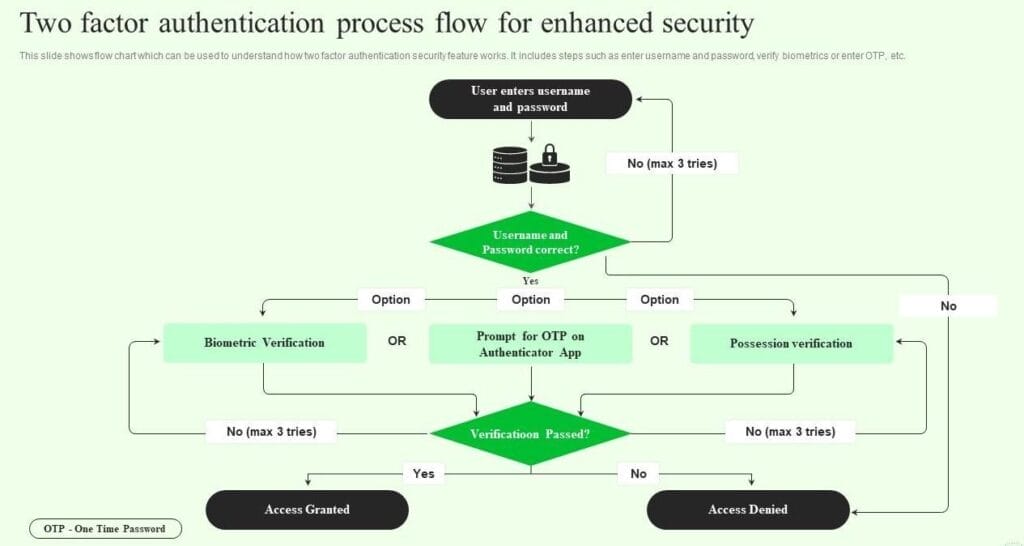
Two Factor Authentication Process M Banking For Enhancing Customer …
Skipping 2FA is like leaving your front door unlocked in a busy city – it might be fine, but why risk it? Without it, a stolen password gives hackers full access. With 2FA, they need your phone or device too, which stops most attacks cold.
In 2025, breaches have shown just how vital 2FA is:
The risks? Identity theft, drained bank accounts, or embarrassing email hacks. Enable 2FA now – it’s free and takes minutes!
Here are the most common options, ranked from most to least secure:
Pros: Offline codes, phishing-resistant, free.
Cons: Lose your phone? You need backups. Best for everyday use.
Pros: Virtually unhackable, no codes to type.
Cons: Costs £20-£50, easy to misplace. Best for high-security needs.
Pros: Super convenient, built into phones.
Cons: Privacy worries, rare spoofing risks. Great combined with another method.
Pros: No extra apps needed.
Cons: If email is hacked, 2FA fails. Use only as backup.
Pros: Simple, widely supported.
Cons: Vulnerable to SIM swapping. Avoid if possible – switch to an app!
It’s easier than assembling flat-pack furniture. Here’s how:
Google:
Apple:
Banking Apps (e.g., HSBC, NatWest):
Pro tip: Start with email and banking, then add social media.
Google is rolling out mandatory MFA by end of 2025.
Strong passwords + 2FA = unbeatable combo. Follow these:
Treat your phone like your wallet – lose one, and the other becomes useless to thieves!
Lost your phone? Don’t panic. Here’s your safety net.
Most services give you 8-10 one-time backup codes when you enable 2FA.

1FA vs 2FA vs MFA: Choosing the Right Authentication Method for …
(Suggested visual: Infographic showing backup code workflow – place here for reader engagement.)
Prevention tip: Use Authy for cloud backup – switch phones without hassle.
Passwords are on their way out! Passkeys – cryptographic keys stored on your device – are exploding in 2025.
Passkeys are phishing-proof and faster – just tap your fingerprint. Expect them everywhere by 2026!
If “two-factor authentication” sounds like more gear for your tech toolbox, here are today’s top contenders—and how they stack up.
| Method | Description | Pros | Cons |
|---|---|---|---|
| Authenticator Apps (e.g., Google Authenticator, Authy, Microsoft Authenticator, Aegis) | App generates 6-digit codes that refresh every 30 seconds | Strong security, supports multiple accounts, works offline, Authy offers cloud backup | Need phone/tablet, backup is key if device lost, App setup required |
| SMS Codes | Receive one-time codes by text message | Easy to set up, widely supported | Vulnerable to SIM-swapping attacks; weaker vs. apps |
| Email-Based Verification | Codes sent to your email for login confirmation | Simple, adds an extra step | Email account can be a single point of failure |
| Hardware Keys (YubiKey, Kensington, Google Titan) | Physical USB/NFC/Bluetooth key used for login | Ultra-secure, immune to phishing, no software dependency | Costs money, can lose key, setup on each service |
| Biometrics | Fingerprint, Face ID, or iris scan used alongside another factor | Convenient, difficult to fake, fast | Requires compatible hardware, can’t be changed if compromised |
Use a password manager for storing login details and backup codes—safer than post-it notes on your monitor.
Use authenticator apps or hardware keys over SMS whenever possible.
Activate 2FA on all critical accounts: email, cloud storage, banking, social media.
For Google accounts: visit “Security” in your Google Account, select “2-Step Verification”, and follow prompts.
For Apple IDs: manage from “Settings” > “Name, Phone Numbers, Email” > “Password & Security”.
For banking or finance apps: check your bank’s app or website for “Security” or “2FA” options; usually under “Profile” or “Settings”.
Always save backup codes (get ready for the next section).
No, they’re not quite the same, though they’re close cousins in the authentication family.
Two-factor authentication (2FA) specifically requires exactly two distinct factors to verify your identity, such as a password (something you know) combined with a code from an app (something you have). It’s like having a lock and a key, straightforward and effective for most everyday needs.
Multi-factor authentication (MFA), on the other hand, is the broader term that encompasses two or more factors, potentially including three or even four for higher security scenarios.
This could add biometrics (something you are) or location-based checks (somewhere you are), making it ideal for sensitive environments like corporate networks or government systems.
The key difference lies in flexibility: 2FA is a subset of MFA, so if a system claims MFA but only uses two steps, it’s essentially 2FA in disguise. In practice, many services use the terms interchangeably, but opting for MFA where possible adds extra layers, much like piling on blankets during a chilly British winter.
For businesses, MFA often meets compliance standards like GDPR, while 2FA suffices for personal accounts. If you’re setting up security, start with 2FA and upgrade to MFA for peace of mind, chuckling at hackers who thought two factors were enough to stump them.
Not really, and in 2025, it’s riskier than ever due to escalating threats like SIM swapping, where crafty attackers hijack your phone number to intercept those precious codes.
While SMS 2FA is better than nothing, providing a basic extra layer against simple password guesses, its vulnerabilities make it a bit like using a chocolate teapot: handy in theory, but melts under pressure.
SIM swapping involves fraudsters impersonating you to your mobile provider, often with weak verification processes, leading to them rerouting your texts and calls.
This year alone, incidents have surged, with reports of over 1,000% increase in some regions, targeting everything from banking apps to crypto wallets.
Once swapped, attackers can reset passwords and bypass security, causing financial fraud or even third-party risks like triggering penalties in enterprise settings.
To stay safe, switch to an authenticator app like Google Authenticator or Authy, which generates codes offline and isn’t tied to your SIM card.
These are phishing-resistant and work without signal, perfect for when you’re in a dead zone.
If you’re stuck with SMS, add a PIN to your mobile account and monitor for unusual activity. In short, treat SMS as a last resort, like relying on an umbrella in a hurricane, and upgrade for true protection.
Most major services do support 2FA, but not absolutely all, so it’s worth checking each one to avoid any nasty surprises.
Popular platforms like Google, Microsoft, Apple, GitHub, and social media giants (Facebook, Instagram, X) offer it as standard, often with options for apps, hardware keys, or biometrics.
To enable it, log in, navigate to security settings (usually under “Account” or “Privacy”), and look for “Two-Factor Authentication” or “Two-Step Verification”.
For instance, on Microsoft, you’ll need an email or phone to start, and it’s wise to add multiple methods for backup.
On GitHub, after enabling, save your recovery codes immediately to dodge future lockouts. For social media, it’s similar: on Facebook, click your profile, go to settings, and enable under security, perhaps with a cheeky reminder that it’s quicker than untangling earphones.
If a service doesn’t support 2FA, consider alternatives or use a password manager with built-in 2FA. To check availability, search the site’s help centre or use directories like 2fa.directory.
Remember, enabling it across accounts bolsters your overall security, turning your digital life into a fortress rather than a flimsy tent.
Prioritise high-risk ones like email and banking first, and you’ll sleep easier knowing hackers are left scratching their heads.
Losing your backup codes can feel like misplacing your house keys during a downpour, but don’t despair; there are structured steps to regain access without starting from scratch.
First, if you have a secondary verification method enabled, like an alternative email or phone number, use that to log in temporarily.
For services like Google, if you’ve exported your authenticator codes via QR beforehand, scan them on a new device to restore.
If not, contact the platform’s support team immediately: provide proof of identity, such as answering security questions, recent login details, or even photo ID for high-stakes accounts like banking.
On platforms like Jagex or RuneScape, log in with your existing 2FA if possible, then navigate to account management to regenerate codes.
For mobile-based 2FA, reach out to your provider to recover your SIM if swapped, or switch to a new device using recovery options.
Prevention is golden: always store codes in multiple secure spots, like a password manager or printed in a safe, and test recoveries periodically.
If support is slow, be patient, it’s like waiting for the postman, but worth it to reclaim your digital domain. In the meantime, avoid logging in on untrusted devices, and consider enabling account alerts for suspicious activity.
Yes, passkeys often edge out traditional 2FA in convenience and security, offering a passwordless future that’s as smooth as a well-brewed cuppa without the hassle of stirring in extra codes.
Passkeys use public-key cryptography tied to your device, authenticating via biometrics or PINs, which eliminates the need for remembering or entering passwords altogether.
Compared to traditional 2FA, which adds a second step like a code after your password, passkeys resist phishing because they’re domain-specific: a fake site simply won’t trigger them.
They’re also brute-force proof, can’t be guessed or shared, and lower costs by ditching SMS fees or hardware tokens. In 2025, adoption is booming, with Apple, Google, and sites like PayPal mandating them, leading to 269 per cent growth in some sectors and 74 per cent consumer awareness.
However, they’re not a complete replacement yet; some use passkeys as an enhanced 2FA factor, combining with passwords for hybrid security.
Drawbacks include device dependency: lose your phone, and you need backups.
Start using them on supported services like iCloud or Google accounts by enabling in settings, it’s a step towards a world where logins feel magical rather than mundane.
With passkeys, hackers might as well try picking a lock with a noodle, so dive in for that extra peace of mind.
We’ve covered the basics in the guide, but here are some fresh FAQs that delve into other nooks and crannies of 2FA. I’ve kept them practical, with a sprinkle of humour to ward off the boredom of security jargon – because who says staying safe can’t be a bit fun?
Ah, the age-old mix-up, like confusing a biscuit with a cookie (though in the UK, we know better).
Two-factor authentication (2FA) specifically refers to using two different types of factors – something you know (password), something you have (phone), or something you are (biometric).
Two-step verification (2SV), on the other hand, is a broader term that might involve two steps of the same factor, like a password followed by a security question.
In practice, many services use the terms interchangeably, but true 2FA is more secure because it diversifies the verification methods.
For example, Google’s system is technically 2SV if it sends a code to your email (both “know” factors), but switches to 2FA with an authenticator app.
The takeaway? Aim for proper 2FA to avoid hackers chuckling their way in.
Absolutely, and you jolly well should – it’s like adding a moat to your digital castle.
Platforms like Facebook, Instagram, Twitter (now X), and LinkedIn all support 2FA. To set it up: Log in, head to settings (usually under “Security” or “Privacy”), and look for “Two-Factor Authentication”.
Choose an authenticator app for best results, scan the QR code, and verify. For X, it’s under “Additional resources” in security settings. Pros include blocking unauthorised logins from dodgy devices, but remember, if someone phishes your password and tricks you into approving a prompt, even 2FA has its limits.
Enabling it might add 10 seconds to your login, but that’s less time than explaining to friends why your account is posting spam about miracle diets.
It adds a smidge of time, typically 5-15 seconds for entering a code or approving a prompt, but think of it as the queue for a good cuppa: brief and rewarding.
In a busy day, that’s negligible compared to the hours you’d lose recovering from a hack.
For frequent logins, biometrics or passkeys can shave it down to a tap.
Resoundingly yes; studies show 2FA users face 76% fewer account takeovers.
If you’re the type who forgets passwords anyway, the extra step might even jog your memory, or at least give you a moment to ponder life’s mysteries, like why hackers never seem to take a holiday.
Murphy’s Law strikes again: your app decides to throw a wobbly just when you need it.
First, don’t panic, use those backup codes you (hopefully) stashed away. If not, fall back to secondary methods like SMS or email verification if enabled.
To fix the app: Restart your phone, check for updates, or reinstall (but export codes first via the app’s settings).
For Authy, cloud backups mean you can restore on another device.
Prevention is key: Test your app monthly, like checking the smoke alarm.
And if all fails, contact support with proof of identity, they’ll guide you through, though it might feel like waiting for the kettle to boil twice.
Not universally, but it’s creeping in like a polite British queue. In the UK, under GDPR and PSD2 regulations, banks and financial services must offer strong customer authentication, which often includes 2FA for online transactions.
Health apps handling sensitive data might require it too, per NHS guidelines.
Globally, laws like California’s CCPA encourage it for privacy. For personal accounts, it’s voluntary, but some employers mandate it for work emails.
Humour aside, ignoring it could lead to compliance headaches if you’re in a regulated field, better safe than sorry, or fined!
Piece of cake, or should I say, Victoria sponge?
For Amazon: Go to “Your Account” > “Login & Security” > “Edit” next to Advanced Security Settings, then enable 2FA via app or SMS. eBay: Under “Account” > “Sign-in and Security” > Turn on two-step verification.
Most sites follow suit – look for “Security” in settings. It protects against unauthorised purchases, especially handy if your card details are stored.
Tip: Use a virtual card for extra layers. And if a hacker tries to buy that impulse gadget, 2FA will have them rethinking their life choices.
Mostly free as a bird, but with a few caveats. Authenticator apps and biometrics cost nothing beyond your device.
SMS might incur carrier fees if you’re abroad (roaming charges – ouch!). Hardware keys like YubiKey start at £20, a one-off investment for top-tier security.
Some premium services charge for advanced features, like enterprise MFA at £5-10 per user monthly. Overall, the real “cost” is the minor inconvenience, but compared to a breach fallout (average £3.9 million for businesses), it’s a bargain.
Think of it as insurance: pay a pittance now, avoid a fortune later.
Alas, no – it’s a sturdy shield, not an invincible force field. It excels against credential stuffing and basic phishing but falters if attackers use social engineering (tricking you into approving access) or man-in-the-middle attacks (intercepting codes in real time).
Malware on your device could snoop biometrics too. For full protection, layer it with antivirus, updates, and vigilance.
2FA won’t stop you from clicking dodgy links, but it might give you time to realise that “free holiday” email is too good to be true.
Smooth as switching teacups, if planned.
For apps like Google Authenticator: On the old phone, export accounts via QR code (under settings), then scan on the new one. Authy syncs automatically if cloud-enabled.
For services, log in on the new device using backup codes or secondary verification, then re-scan QRs. Apple users: iCloud Keychain handles it seamlessly.
Always do this before wiping the old phone – or risk a comedy of errors chasing support. Pro tip: Keep backups updated; it’s like packing an umbrella for British weather.
App-based (like Google Authenticator) lives on your phone, generating codes via software – convenient, free, but tied to your device (lose it, and cue the drama).
Hardware-based (YubiKey) is a physical gadget, offering top-notch security against remote hacks since it’s not software-vulnerable.
Pros for hardware: Portable, works across devices.
Cons: Cost and the risk of misplacing it (hello, keychain attachment).
Apps are great for starters, hardware for paranoids – or anyone who treats security like a fine art, not a chore.
Choose based on your threat level; both beat SMS hands down.
You’ve now got everything you need to understand what is two-factor authentication, choose the best 2FA methods, and master 2FA recovery tips. Don’t wait for a breach to hit home – enable 2FA on your main accounts right now. It takes five minutes and could save you hours of headache.